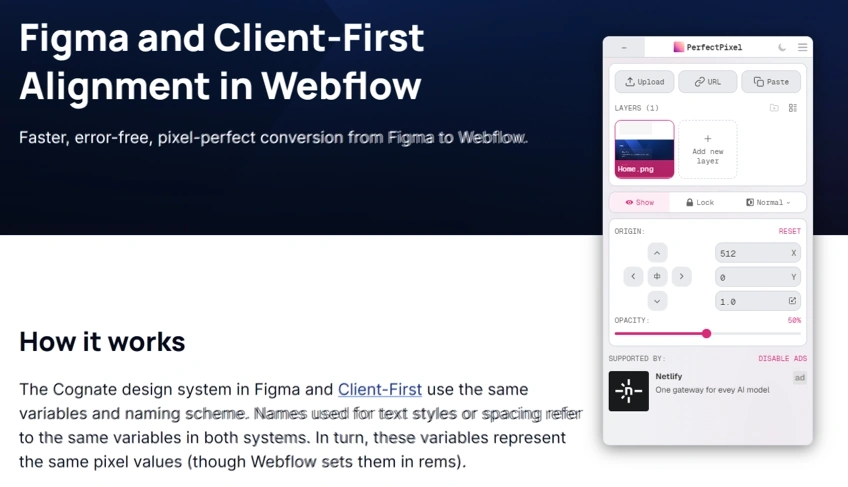
Figma and Client-First Alignment in Webflow
Faster, error-free, pixel-perfect conversion from Figma to Webflow.
How it works
The Cognate design system in Figma and Client-First use the same variables and naming scheme. Names used for text styles or spacing refer to the same variables in both systems. In turn, these variables represent the same pixel values (though Webflow sets them in rems).
cognate /ˈkɒɡ.neɪt/ noun
A word that shares the same origin and meaning across two languages.
For example: when a designer uses text-size-large in Figma, the developer has the same class in Webflow, both meaning 24px on desktop. Same with spacing: if a designer uses a gap with the spacing value small (24px), the developer has small available in Webflow too, both as a variable and in class names.
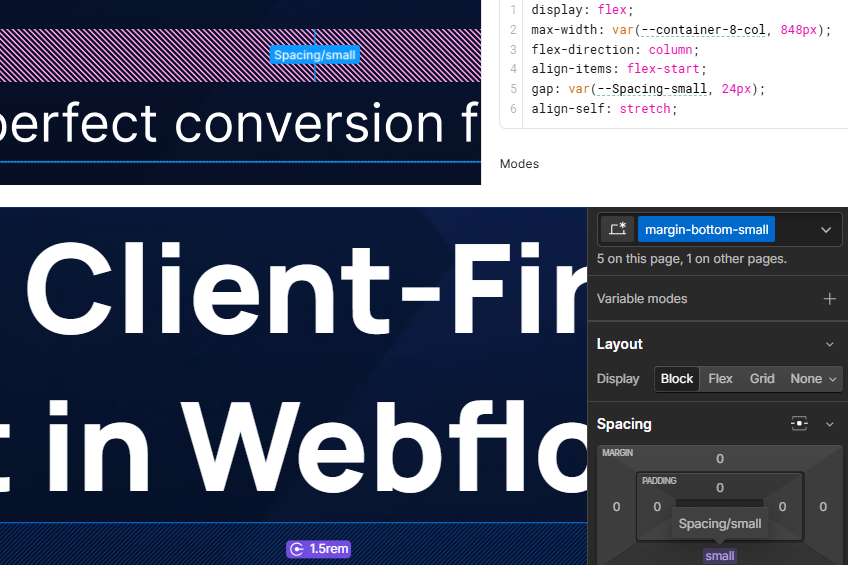
Both systems also use variable modes, letting you set custom values per breakpoint and speeding up responsive development.
This results in fast and pixel-perfect conversion from Figma to Webflow.
Tools
Client-First
Client-First is Finsweet's naming convention and style system for Webflow, a set of guidelines and strategies for building organized, scalable Webflow projects.
Cognate DS
xfive's custom design system, built in Figma and aligned with Client-First. Cognate DS mirrors Client-First's variables and naming one to one, so Figma and Webflow use the same system.
Setup
To achieve full alignment between Client-First v3 and a Figma design built with Cognate DS, a few adjustments are needed. Follow the steps below to set up your project.
1. Create a Client-First project from the cloneable.
Go to the newly created project in Webflow and do the following:
- Delete Client-First assets (3 images)
- Delete the two existing components (
Template / Section,Template / Core structure) - Go to Home and delete
section_hero - Go to Style selector (G) and clean up unused styles
2. Upload Custom Fonts
Upload custom fonts, if needed. See Webflow's guide.
3. Update Variables in Webflow
Update Base / Font Family, change it to the uploaded fonts according to Figma DS
Update Typography / Font Size as follows:
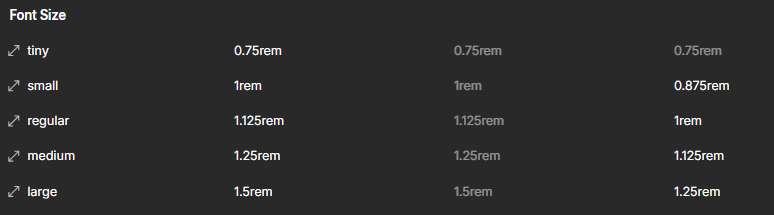
Update Typography / H1 and H2 - change font size.
Add a paragraph-spacing variable to each H2, H3, etc.
Add colors from Figma DS.
Update Sizes / Container:
Rename container-large to container-12-col, container-medium to container-10-col, and container-small to container-8-col, and update their values according to Figma DS, in rems. Add container-2-col through container-6-col with values in rems.
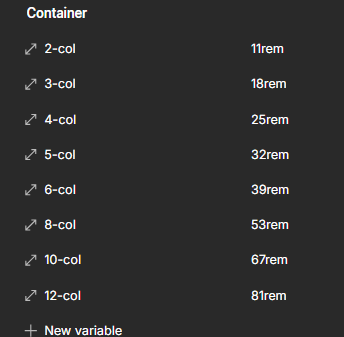
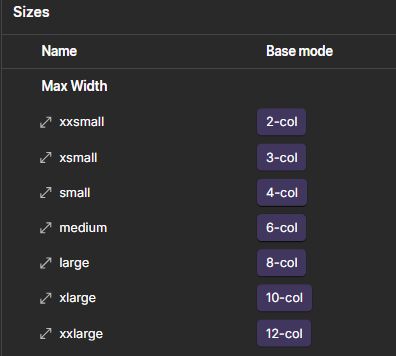
Update Sizes / Max-width to the following variables:
4. Update Client-First Style Guide
Go to the Style guide page and update it to match Figma DS.
Update Structure Classes:
Rename container-large to container-12-col, container-medium to container-10-col, and container-small to container-8-col
Add container-6-col, container-5-col, container-4-col, container-3-col, and container-2-col. To do this, duplicate the whole CF element, duplicate the class of the container, and set the appropriate variable

Copyright © 2005–2026 xfive.co Pty Ltd. ABN 160 801 285